While the Quick Paste window is perfect for rapidly accessing recent clips, sometimes you need more space to work with. That's where Collection View comes in - a full-screen clipboard browser designed for power users who want complete control over their clipboard history.
Opening Collection View
To open Collection View, right-click on the Awesome Copy menu bar icon and select Collection View from the menu.
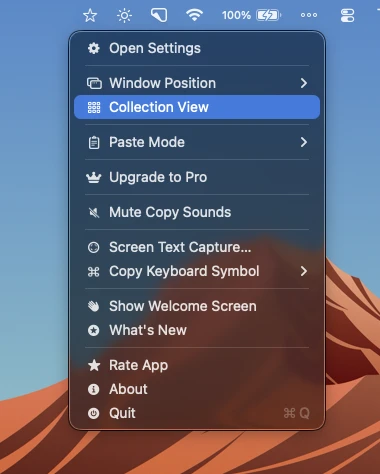
Access Collection View from the menu bar right-click menu
The Collection View window opens in full-screen mode, giving you maximum space to browse and manage your clips.
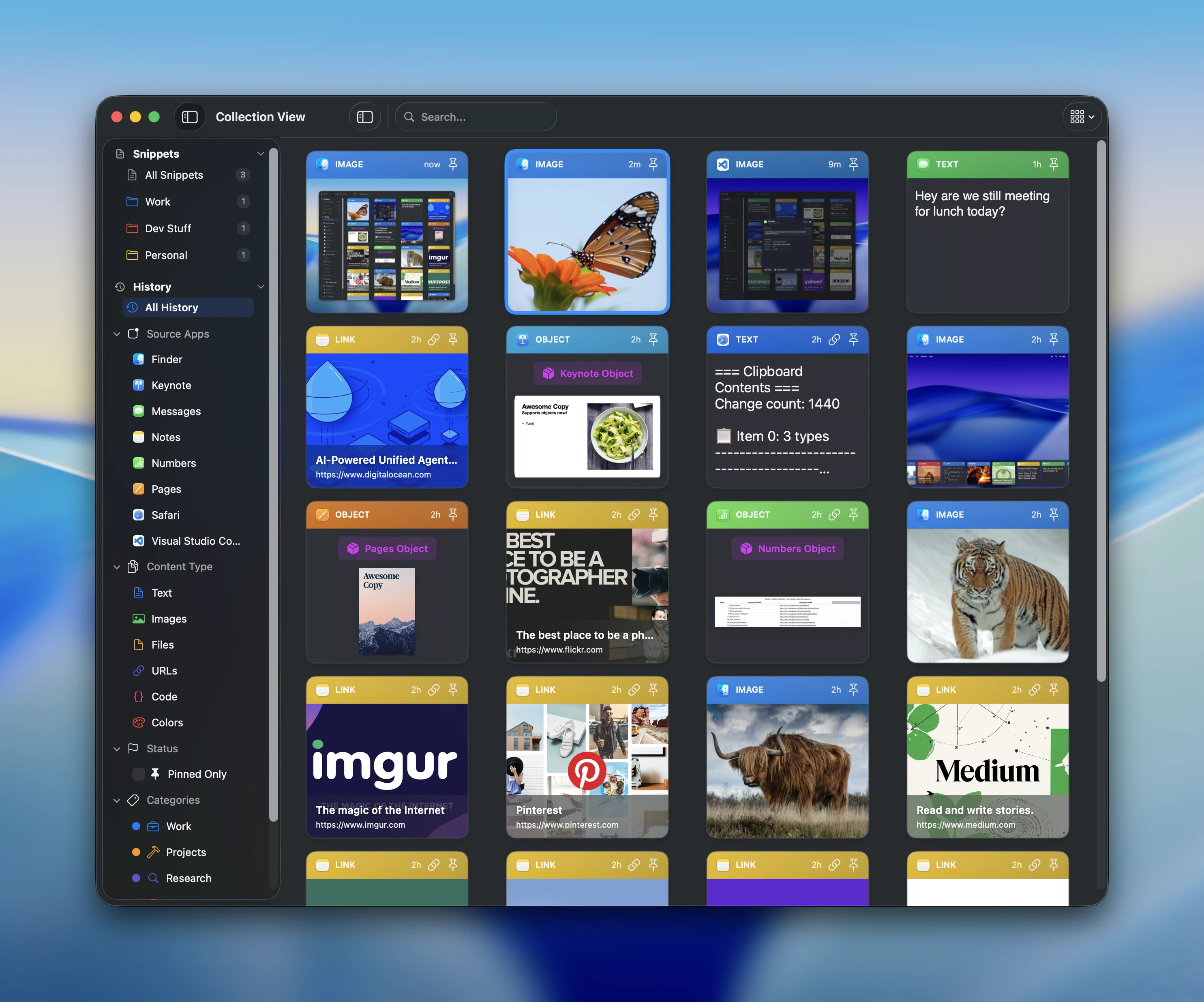
Collection View displays your clipboard history as visual cards
Two Viewing Modes
Collection View offers two distinct modes to help you find exactly what you need:
History
Browse everything you've copied, organized by time and source app.
Snippets
Browse your saved snippets, organized by folder for quick access.
Switch between modes using the sidebar on the left side of the window.
Understanding the Layout
Collection View is organized into three main areas:
- Sidebar (left) - Contains filters, navigation, and category options. You can collapse it for more viewing space.
- App Filter Bar (top) - In History mode, a row of app icons lets you filter by source application, sorted by most recently used.
- Main Grid - Your clipboard items displayed as visual cards, showing previews of images, text, links, and files.
Powerful Search & Filtering
Finding specific clips is fast and intuitive with Collection View's search capabilities.
Smart Search Bar
Type in the search bar to instantly filter your clipboard content. The search looks through:
- Text content
- Filenames
- Source application names
Filter Chips
Add filter chips to narrow down your results by type:
- Links - Show only URLs and web links
- Images - Show only images and screenshots
- Files - Show only file references
- Text - Show only plain text clips
- Pinned - Show only your pinned favorites
- Specific Apps - Filter by source application
- Devices - Filter by which device the copy came from
Date Filtering
Narrow down by time period: All Time, Today, This Week, and more.
Tip: When filters are active, a "Clear Filters" button appears - click it to reset everything and see your full history again.
Customization Options
Make Collection View work the way you want with these display options:
Card Size
Choose from Small, Medium, or Large cards depending on how much detail you want to see at once.
Spacing
Adjust the density with Compact, Normal, or Relaxed spacing between cards.
Sidebar Width
Drag the sidebar edge to resize it. Your preference is remembered for next time.
Working with Items
Collection View supports several ways to interact with your clips:
- Click to select an item
- Multi-select to work with multiple items at once
- Keyboard navigation with arrow keys for quick browsing
- Double-click to paste an item immediately
When to use Collection View vs Quick Paste
Use Quick Paste when you know what you want and need to paste quickly. Use Collection View when you need to browse, search across many items, or manage your clipboard history in bulk.
Start Exploring
Collection View transforms how you work with your clipboard history. Instead of scrolling through a simple list, you get a visual, searchable, and filterable interface that makes finding any clip effortless.
Right-click on the Awesome Copy menu bar icon and open Collection View to see your clipboard history like never before.