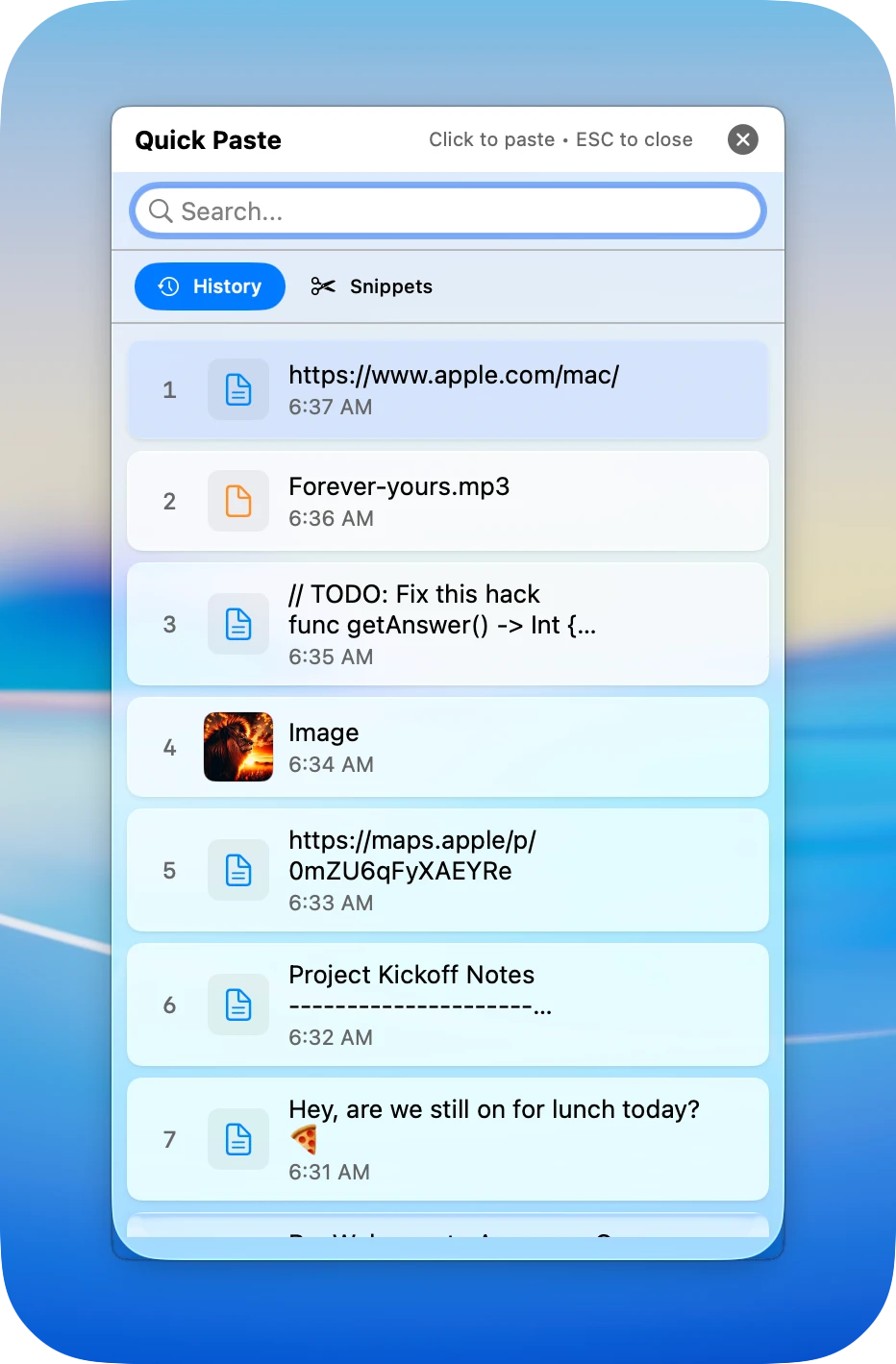
The main Awesome Copy window is great for browsing your clipboard history, but sometimes you just need to quickly grab something you copied a few minutes ago. That's where Quick Paste comes in - a lightweight popup designed for speed.
What is Quick Paste?
Quick Paste is a compact floating window that gives you instant access to your recent clipboard items. Unlike the main app window, Quick Paste is designed to get out of your way:
- Appears right next to your mouse cursor
- Shows your most recent clips in a compact list
- Disappears as soon as you paste or click away
- Supports keyboard navigation and search
Think of it as a quick-access panel that's always one hotkey away, no matter what app you're in.
Activating Quick Paste
Quick Paste is triggered by a customizable keyboard shortcut. By default, press:
Default Hotkey
⌥ + Z (Option + Z)
When you press the hotkey, the Quick Paste window instantly appears right next to your mouse cursor. This positioning is intentional - your eyes and cursor are already in the area where you're working, so the paste menu appears exactly where you need it.
Changing the Hotkey
Don't like the default shortcut? You can customize it:
- Open Awesome Copy Settings - Click the menu bar icon and select Settings, or press ⌘+,
- Go to the General tab - Find the "Quick Paste Hotkey" option
- Click the hotkey field - It will start listening for your new shortcut
- Press your desired key combination - Choose something that doesn't conflict with other apps
Pro tip: The default ⌥+Z is easy to press with one hand. If you prefer something different, choose a combination that doesn't conflict with other apps you use frequently.
Navigating Quick Paste
Once the Quick Paste window is open, you have several ways to find and select the clip you want.
Keyboard Navigation
Use these keys to move through your clipboard history:
| Action | Shortcut |
|---|---|
| Move down | ↓ |
| Move up | ↑ |
| Paste selected item | Return or Enter |
| Close without pasting | Esc |
The arrow keys let you quickly scroll through your history. When you find what you need, just press Return to paste it into your current application.
Type to Filter
Have a lot of clips and need to find something specific? Just start typing. Quick Paste includes a search filter that narrows down your clips as you type:
- Type any part of the text you're looking for
- The list updates in real-time to show matching clips
- Works for text content, URLs, and even file names
- Case-insensitive for easier searching
For example, if you copied an email address earlier, just type "gmail" or "@" and Quick Paste will filter to show only clips containing that text.
Tip: Combine filtering with keyboard navigation. Type a few characters to narrow the list, then use arrow keys to select and Return to paste.
Image Previews
Quick Paste isn't just for text. When you've copied images, they appear as visual thumbnails in the list, so you can quickly identify the right screenshot or graphic.
Image previews show:
- A thumbnail of the actual image content
- The image dimensions
- File size information
This makes it easy to distinguish between multiple screenshots or find that specific image you copied earlier without having to remember exactly when you copied it.
Paste on Click
While keyboard navigation is the fastest way to use Quick Paste, you can also use your mouse:
- Single click on any clip to instantly paste it
- The window closes automatically after pasting
- Click outside the window to dismiss it without pasting
The paste happens immediately - there's no need to click and then press a separate paste command. One click and the content goes right into your current application at the cursor position.
Where Quick Paste Opens
Quick Paste is designed to appear exactly where you need it. When you press the hotkey:
- The window appears next to your mouse cursor
- It positions itself to avoid going off-screen
- On multi-monitor setups, it appears on the screen where your cursor is
This cursor-relative positioning means you don't have to move your eyes or mouse to a fixed location. The paste menu comes to you, not the other way around.
Smart Positioning
Quick Paste automatically adjusts its position near screen edges. If your cursor is at the bottom-right corner, the window will appear above and to the left so it stays fully visible.
Quick Paste vs. Main Window
When should you use Quick Paste versus opening the main Awesome Copy window? Here's a quick guide:
| Use Quick Paste when... | Use Main Window when... |
|---|---|
| Grabbing a recent clip | Browsing older history |
| You know what you're looking for | Organizing or pinning clips |
| Speed is the priority | Editing clip content |
| Working in another app | Managing categories |
Most day-to-day pasting from history happens through Quick Paste because it's faster and less disruptive to your workflow.
Tips for Power Users
Get the most out of Quick Paste with these advanced tips:
Muscle Memory
The real power of Quick Paste comes when it becomes second nature. Practice the hotkey until it's automatic: press, type a few filter characters if needed, arrow to select, Return to paste. The whole sequence takes just a second or two.
Keep Recent Items Accessible
Quick Paste shows your most recent clips first. If you know you'll need something again soon, copy it fresh to bump it to the top of the list.
Pin Frequently Used Clips
Items you paste often (like email signatures or code snippets) can be pinned in the main Awesome Copy window. Pinned items appear at the top of Quick Paste, so they're always just a hotkey away.
Get Started
Quick Paste is available in Awesome Copy right out of the box. If you haven't tried it yet:
- Make sure Awesome Copy is running - Check for the icon in your menu bar
- Copy a few things - Build up some clipboard history
- Press the hotkey - Default is ⌥+Z (Option+Z)
- Navigate and paste - Use arrows and Return, or just click
Once you get used to Quick Paste, you'll wonder how you ever managed with just Command+V.
Download Awesome Copy
Experience Quick Paste and all the other features that make clipboard management effortless. Get Awesome Copy on the App Store.